
- SGCC Galvanized Steel
- Highly Stable and Compatible Special Pole Clamp*
- The Integrated Bracket is CO2 Welded
- 8.8 Grade High-strength Screws**
- Anti-loosing Spring Pads
- Reinofrced Angle-adjustable Bracket
TP-Link VIGI PS30 Solar System Controller 31.2Ah/10.8V
- 31.2Ah/10.8V Automotive-Grade Lithium Battery
- Remote Management and Maintenance via the VIG app or VIGI Cloud VMS
- Intelligent Auxiliary Heating Technology Ensures Optimal Battery Performance in Extreme Cold Weather
- Maximum Power Point Tracking (MPPT) Charging Controller Increases Charging Efficiency by 20%*
- Over-charge, Over-discharge, Over-current, Overheat, and Short-circuit Protections
- Remaining Capacity > 70%** after 500 Cycles
- IP66 Weatherproof
TP-Link VIGI PS90 Solar System Controller 93.6Ah/10.95V
- 93.6Ah/10.95V Automotive-Grade Lithium Battery (31.2Ah Per Lithium Battery)
- Remote Management and Maintenance via the VIG app or VIGI Cloud VMS
- Indendent Protection Circuit Ensures Battery Safety and Uninterrupted Device Operation
- Intelligent Auxiliary Heating Technology Ensures Optimal Battery Performance in Extreme Cold Weather
- Maximum Power Point Tracking (MPPT) Charging Controller Increases Charging Efficiency by 20%*
- Remaining Capacity > 70%** after 500 Cycles
- IP66 Weatherproof
VIGI App Notification Issues
Frequently Asked Questions
VIGI App Notification Issues
If push notifications from your VIGI camera on your phone don’t work correctly, please refer to the following steps for inspection:
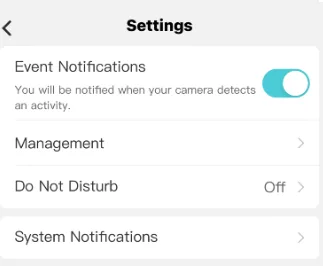
Step 1 Check your camera / NVR whether the Notifications is on your VIGI app.
On the VIGI App go to Me > Settings > Message Notification Settings and check if you have turned on the notifications.
| Click on Management to verify which devices are allowed to send notifications and select as necessary. |
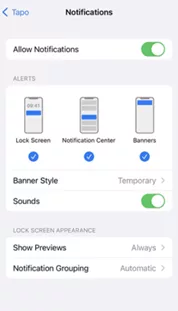
Step 2 Check and confirm Notifications setting on your phone is enabled.
For iOS: Launch Settings > Notifications, ensure Show Previews is on Always, and the Allow Notifications for the VIGI App is on.
| For Android: Launch Settings -> Notifications & Status bar > App notifications, locate the VIGI App and ensure the Show notifications option is on.VIGI Should always be toggled on |
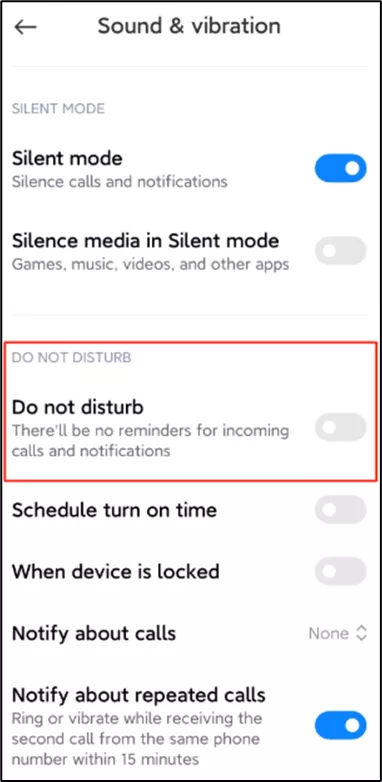
Step 3: Turn off Do Not Disturb
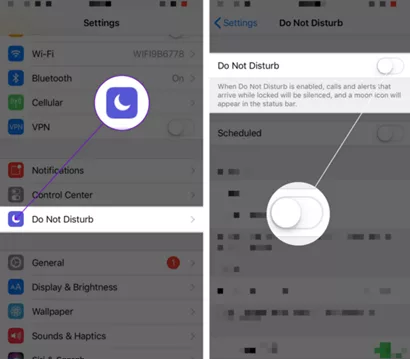
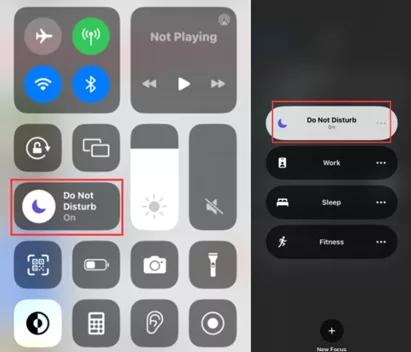
If Do Not Disturb has been enabled on the phone make sure this is turned off.
For iOS 14 or earlier: Go to Settings and tap Do Not Disturb, then tap on the toggle next to Do Not Disturb to turn it off.
For iOS 15 or later: Open Control Centre, tap Focus, then tap the Focus that is on to turn it off.
Step 4: Notifications on the Lock Screen
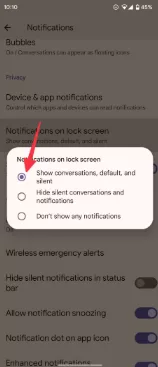
Android phones can receive notifications on the lock screen. This way, you know what each one is for without unlocking the device. If you’re privacy-conscious, set them to display the full notification or only the app icons. If you don’t receive alerts or visual banners on the lock screen, you may have turned off the feature. Here’s how to turn it on:
- Go to Settings > Notifications.
- Tap Notifications on lock screen.
- Choose Show conversations, default, and silent from the pop-up options.
Step 5: Check and ensure the Wi-Fi and cellular connection on the phone is working properly.
Poor or inconsistent internet connections can also prevent push notifications from being sent or being delivered. When a user’s device has limited network access or limited device resources such as a low battery, the device might restrict or delay the notification.
VIGI – NVR Forgotten Password Reset
Frequently Asked Questions
Resetting a Forgotten VIGI NVR Password
If you forget the password of the VIGI NVR, you can reset the password via VIGI NVR.
For Method 1 & 2 you need to know the reset password email. Reset Password Email is the one you entered in Quick Setup for the password reset. It is only used to receive the verification code when you need to reset the password.
Method 1: If your NVR is connected to the internet.
Step 1. On the login page click the Forgot Password option as shown below.
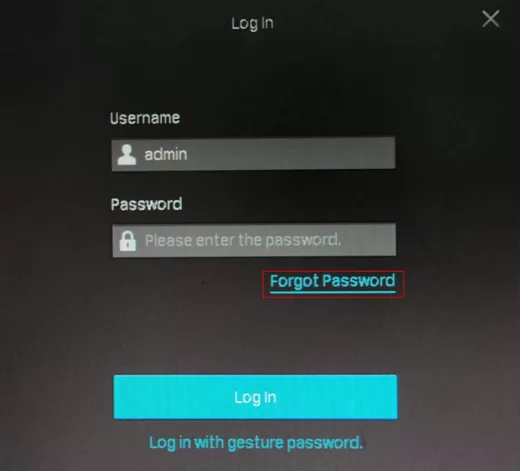
step 2. Send the Verification Code to your Reset Password Email.
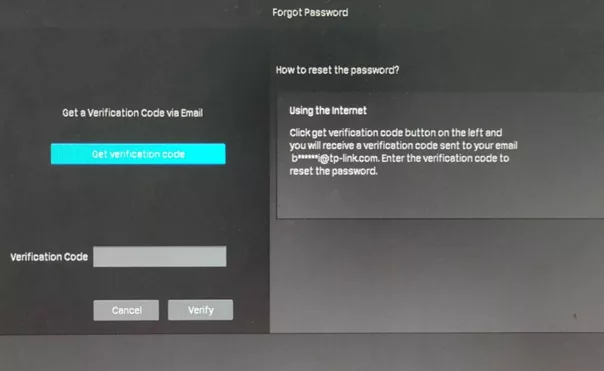
- Click the Send Code and you’ll receive a verification code sent to your Reset Password Email.
- Enter the verification code you received into the blank under the QR code and click the Verify button. Then you can set a new password for your NVR
Method 2: If the NVR is not connected to the internet
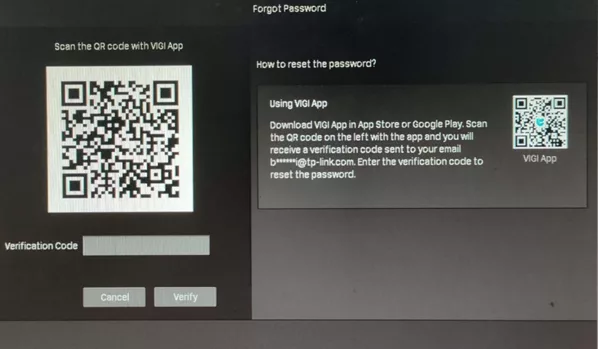
Download the VIGI app from the Apple App Store or Google Play or scan the QR code to download the VIGI app.

- Open the VIGI app, log in with your TP-Link ID. If you don’t have a TP-Link ID, sign up first.
- Tap the “+” on the top right to scan the QR code on the left of the VIGI NVR. Then you’ll receive a verification code sent to your Reset Password Email.
- Enter the verification code you received into the blank under the QR code and click the Verify button. Then you can set a new password for your NVR.
Note:
What should I do if I don’t receive the verification code?
- Check your junk or spam folder.
- Add noreply@tp-link.com in the White list (by clicking Create a new filter) in your email setting.
- Check your email filter setting in your email account.
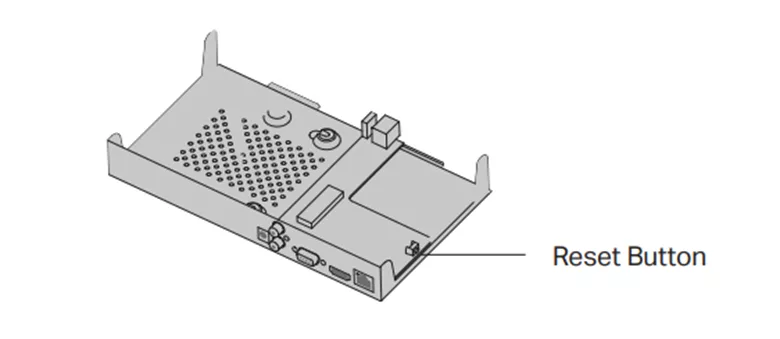
Method 3: Hard reset/ By pressing the RESET button
Remove the cover of the NVR, then press and hold the Reset button inside the NVR for over 3 seconds. The NVR will restore to the factory settings.
Note: Please wait without any operations until the NVR is reset successfully. It may take a few minutes.
VIGI – Adding 3rd Party Cameras to an NVR via RTSP
Frequently Asked Questions
How to add third-party cameras to VIGI NVR via RTSP
Introduction
Some older camera models do not support the ONVIF protocol, necessitating the use of the RTSP protocol to add these devices to the NVR. Once successfully added, the camera’s video feed can be viewed on the NVR and stored within it.
To add a camera via RTSP, the VIGI NVR’s GUI must be used, which requires connecting an external VGA or HDMI display to the NVR. Additionally, you must verify the RTSP stream URL from the camera manufacturer’s website before proceeding.
This article will use a Tapo Camera as an example to demonstrate how to add a camera to the VIGI NVR using the RTSP protocol:
Step 1. Connect the camera and the NVR to the same subnet. Check the camera’s IP address and the RTSP stream URL on the camera manufacturer’s website.
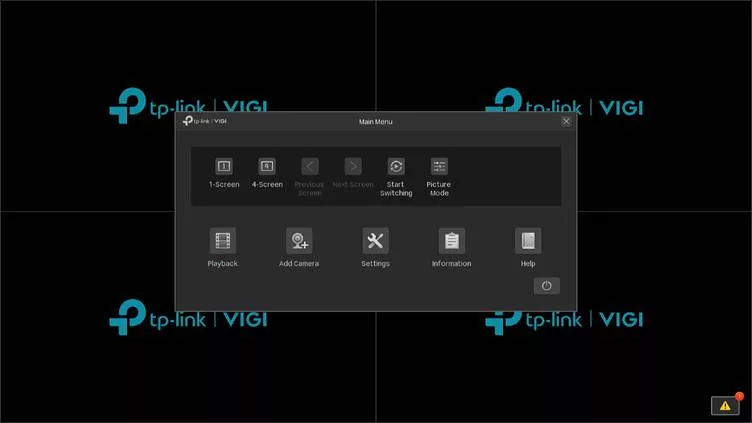
Step 2. Right-click on the VIGI NVR GUI to go to Settings.
Step 3. In the device list, click Add Manually, select the RTSP protocol, and enter the camera’s IP address, along with the admin username and password.
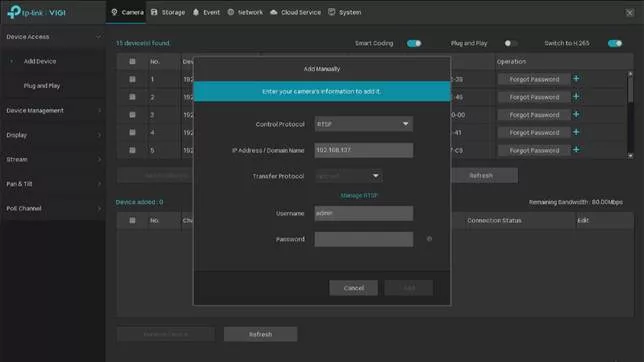
Step 4. Click Manage RTSP, select a RTSP protocol, and specify the parameters
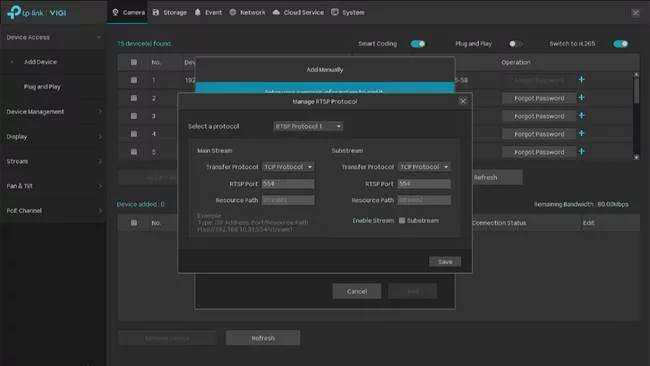
Step 5. Enter the camera’s RTSP stream URL, then click Save
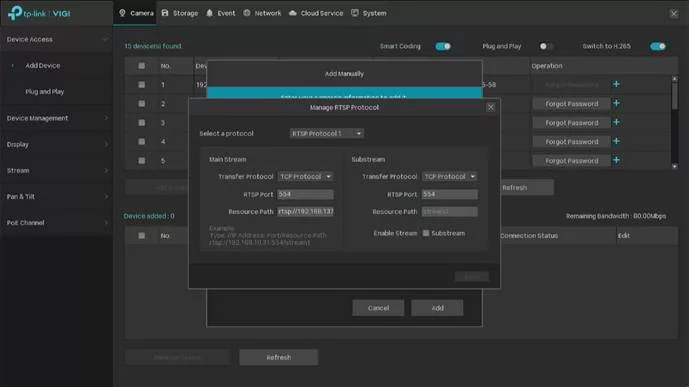
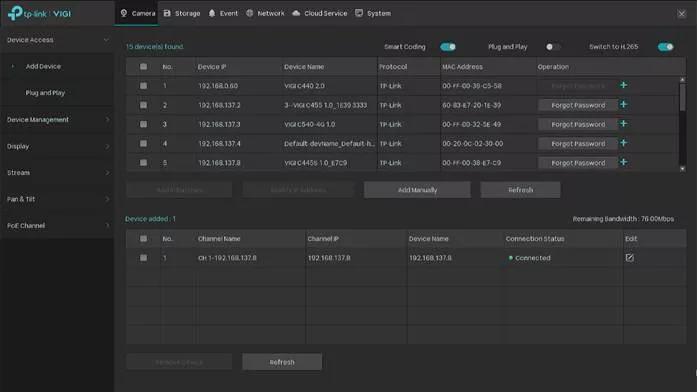
Step 6. The third-party camera is successfully added to the VIGI NVR using the RTSP protocol.
TP-Link VIGI NVR4064H 64 Channel Network Video Recorder
TP-Link VIGI NVR4064H64
- 64-Channel Live View and 4K HDMI Video Output
- Up to 16-ch @ 2MP (25fps) / 8-ch @ 4MP (30fps) Decoding Capability
- 16-Channel Synchronous Playback†
- 320 Mbps Incoming Bandwidth and 320 Mbps Outgoing Bandwidth
- 4× SATA Interfaces and 1 Up to 16 TB*
- H.265+ Compression Technology
- 2 HDMI and 1 VGA Video Output
- Remote Monitoring
TP-Link Insight S285 VIGI 8MP Full-Color Dome Network Camera 4.0mm Lens
TP-Link Insight S285
All The Colours, All The Time
-
4K (8MP) Ultra HD and 24h Full-Colour
-
People & Vehicle Analytics
-
Human & Vehicle Classification
-
Smart Detection
-
Smart Video Enhancement Technology
True WDR: By analysing and blending different exposures, True WDR ensures both bright and dark areas remain properly exposed, delivering a well-balanced and natural-looking image even in environments with high-contrast lighting.
Smart IR: Smart IR dynamically adjusts infrared lighting to prevent overexposure and glare, improve visibility at different distances, and ensure clearer footage.
3D DNR: 3D DNR is a noise reduction technology that analyses image data across frames to selectively reduce noise while preserving important details.
White Balance: White Balance ensures that white appears neutral in an image, regardless of the lighting conditions.
-
Active Defence and Two-Way Audio
-
IP67 Waterproof and IK10 Vandal-Proof
-
H.265+ Compression Technology
TP-Link Insight S285 VIGI 8MP Full-Color Dome Network Camera 2.8mm Lens
TP-Link Insight S285
All The Colours, All The Time
-
4K (8MP) Ultra HD and 24h Full-Colour
-
People & Vehicle Analytics
-
Human & Vehicle Classification
-
Smart Detection
-
Smart Video Enhancement Technology
True WDR: By analysing and blending different exposures, True WDR ensures both bright and dark areas remain properly exposed, delivering a well-balanced and natural-looking image even in environments with high-contrast lighting.
Smart IR: Smart IR dynamically adjusts infrared lighting to prevent overexposure and glare, improve visibility at different distances, and ensure clearer footage.
3D DNR: 3D DNR is a noise reduction technology that analyses image data across frames to selectively reduce noise while preserving important details.
White Balance: White Balance ensures that white appears neutral in an image, regardless of the lighting conditions.
-
Active Defence and Two-Way Audio
-
IP67 Waterproof and IK10 Vandal-Proof
-
H.265+ Compression Technology
TP-Link VIGI Intelligent Solar Power Supply System 90w/31.2Ah
VIGI Intelligent Solar Power Supply System
VIGI By TP-Link’s SP9030 is a highly efficient solar power solution designed for off-grid surveillance and networking gear. Perfect for powering outdoor set-ups in remote locations.
High-Efficiency Solar Panel
Improves the conversion efficiency of light with a Grade-A monocrystalline silicon
solar panel, ensuring a long lifespan of at least 25 years.
High System Stability, All-Weather Operation
The horizontal mount is made of high-quality SGCC galvanized steel with increased
strength, anti-corrosion, and rust resistance. The solar panel is fringed with
high-quality aluminium, and 3.2mm tempered glass covers the surface to increase
impact resistance.
Smart Battery Delivers Optimal Performance
The built-in smart battery supports intelligent auxiliary heating technology, which
allows the battery to operate normally across a wide temperature range.
-
- 90W Photovoltaic Panel and 30Ah/10.8V Lithium Battery
- Modular Design
- 5°/15°/25°/35°/45°/55° Adjustable Angles
- Intelligent Auxiliary Heating Technology
- Maximum Power Point Tracking (MPPT) Charging Controller
- IP66 Weatherproof
- Remote Management
- Simple Installation

Discover the VIGI Video Surveillance Solution
VIGI Insight Series Webinar – Smarter Surveillance for Your Business
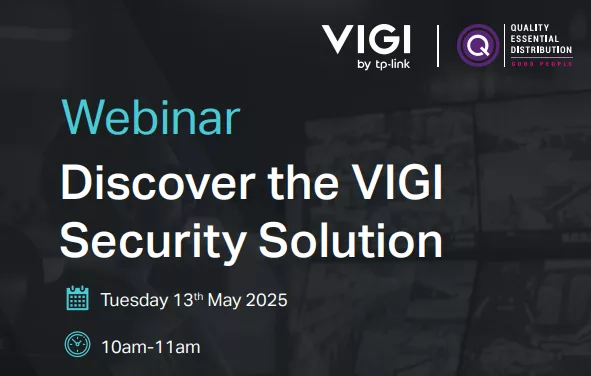
Join us for an exclusive Quality Essential Distribution and VIGI by TP-Link webinar, on Tuesday 13th May, where experts will be showcasing the brand new VIGI Insight Series security camera range from TP-Link.
A leader in networking and surveillance solutions, VIGI by TP-Link products are designed to empower your business with simple installation, easy deployment, and a wide-ranging product line-up built to provide complete protection and peace of mind.
The VIGI Insight Series cameras offer premium security featuring 4K Ultra HD, advanced AI functionality and sharper image detection – delivering smarter, more reliable surveillance solutions for any and all businesses!
Steve K, Regional Sales Manager & Daryl B, Pre-Sales Engineer, both of TP-Link, will be demonstrating products to all of our webinar attendees.
Don’t miss out on this fantastic opportunity with the wonderful people at TP-Link, sign-up now!
Register Here! 👉 events.teams.microsoft.com/tplinkwebinar
Check Out VIGI By TP-Link Here! 👉qedgroup.vigibytplink
TP-Link Insight S655I VIGI 5MP IR Fisheye Network Camera
InSight S655I
360° Coverage with 4-in-1 Cameras, with Two Way Audio and Smart Detection
A single fisheye camera can play the role of many, providing a simpler and more competitive security solution. For example, in 4PTZ display mode, it functions as four cameras at once, delivering complete coverage and flexible perspectives.
VIGI 5MP IR Fisheye Network Camera
- 5MP Super-High Definition and IR Night Vision
- 360° Coverage without Blind Spots
- Supports Multiple Display Modes and ePTZ
- Supports Ceiling Mount / Wall Mount / Pendant Mount
- Smart Detection
- Smart Video Enhancement Technology
- Built-In Microphone & Speaker
- IP67 Waterproof and IK10 Vandal-Proof
- H.265+ Compression Technology
- Suitable for Small Indoor Areas like Retail Shops and Offices